If your free WordPress theme feels slow, don’t replace it yet.
Start by testing the site, then check caching, large images, and plugins. If those are under control and the site is still slow, look more closely at the theme and hosting.
A free theme is not automatically slow, and paying for a theme does not automatically make it faster.
Test your site before you change anything
Run your homepage through Google PageSpeed Insights, then test one normal blog post or page too.
PageSpeed Insights gives you a lab test you can use for troubleshooting. When your site has enough traffic data, it can also show real-world Chrome user data collected over the previous 28 days.
For Core Web Vitals, Google’s current “good” thresholds are:
- LCP: 2.5 seconds or less
- INP: 200 milliseconds or less
- CLS: 0.1 or less
For real-user data, Google looks at the 75th percentile of page visits.
Don’t get stuck trying to turn every PageSpeed score into 100.
Instead, look at what the test is telling you. A large image? Fix the image. Slow server response? Check caching and hosting. Too much JavaScript work? Start looking at plugins and the theme.
Then test the same page again after each meaningful change.
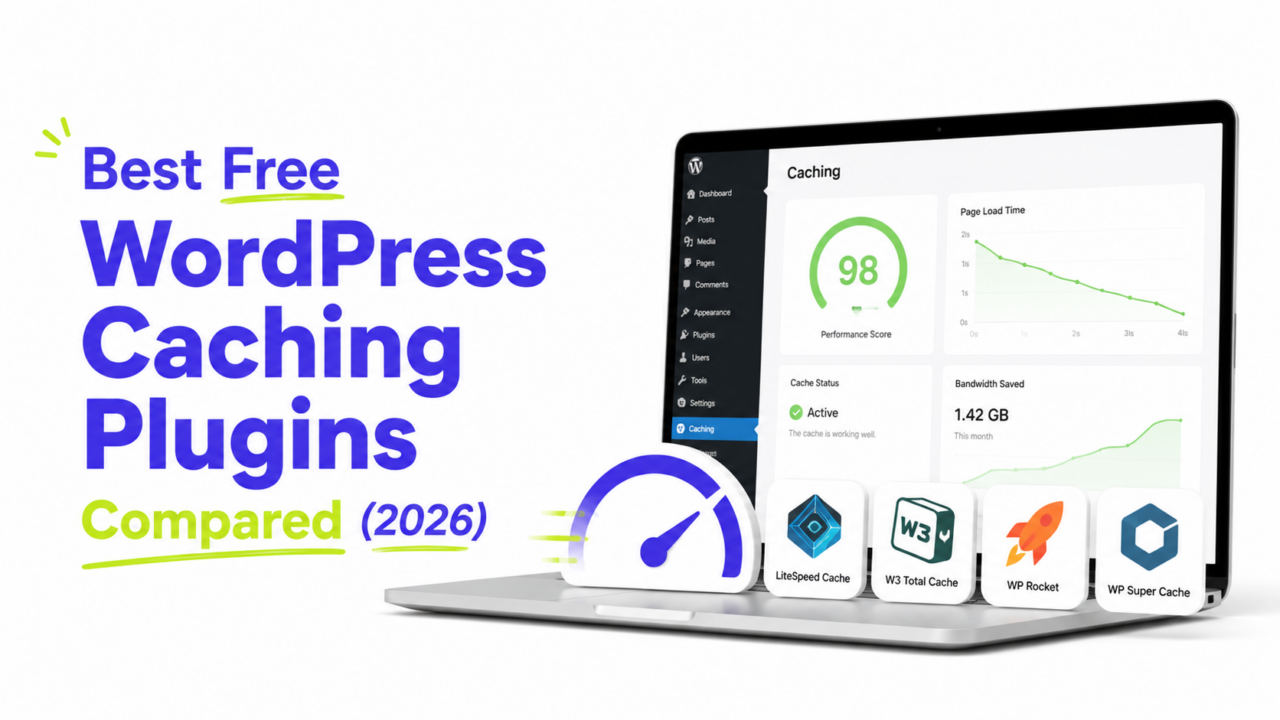
1. Turn on page caching
If your site does not already use page caching, this is one of the first things worth fixing.
Page caching saves a ready-to-serve version of a page instead of making WordPress generate the same page again for each visit. WordPress lists caching as one of its main performance improvements.
Check your hosting dashboard first. Your host may already have caching enabled.
If not, you can use a caching plugin. WP Super Cache, W3 Total Cache, and Cache Enabler are among the options listed in WordPress’s own caching documentation.
Use one caching setup rather than installing several plugins that do the same job.
Turn on basic page caching, clear the cache, and run your speed test again.
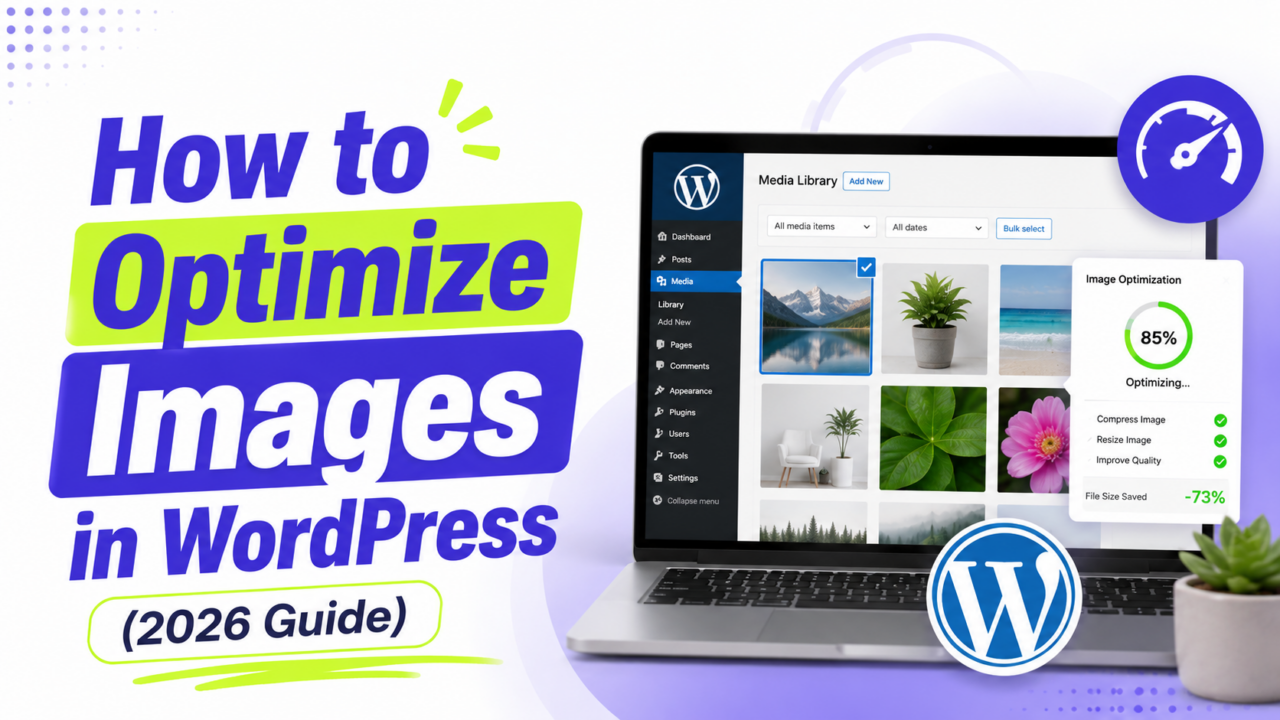
2. Fix large images
Images are another place I would check early, especially if PageSpeed points to a large hero or featured image.
Keep this simple.
Resize oversized images. If an image only appears around 1,200 pixels wide on your site, uploading a 5,000-pixel version usually adds data your visitor does not need.
Compress large files. You can compress images before uploading them or use an image optimization tool in WordPress.
Use an efficient format. WebP can be useful when it gives you a smaller file without a noticeable loss in quality.
Google’s performance guidance also recommends properly sized and optimized images rather than sending much larger files than the browser needs.
You normally do not need another plugin just to add basic lazy loading. Modern WordPress already handles lazy loading for appropriate images.
More importantly, an image near the top of the page should not be delayed when the browser needs it for the initial view. WordPress has its own loading logic to avoid treating every image the same way.
So don’t turn on every image optimization option just because it exists.
3. Check your plugins
Don’t judge your site by plugin count alone.
Having more plugins can add more work, but what those plugins actually do matters just as much. WordPress recommends removing plugins you do not need and testing plugins selectively when tracking down performance problems.
Delete anything you no longer use.
Then pay more attention to plugins that may add a lot of front-end code, outside requests, or background work. Depending on the plugin, that can include:
- Page builders
- Sliders
- Social sharing tools
- Tracking tools
- Related-post plugins
- Backup or security plugins
If one looks suspicious, temporarily deactivate it and test the same page again.
If performance improves clearly, you now have something specific to investigate.
That is much more useful than deciding your site has “too many plugins” because it passed some arbitrary number.
4. Find out whether the theme is actually slow
If caching, images, and obvious plugin problems are already handled, the theme is worth checking next.
Themes can affect performance through the CSS, JavaScript, images, fonts, and other resources they load. WordPress itself recommends minimizing server requests, reducing image sizes, and optimizing CSS and JavaScript when improving theme performance.
Look at your PageSpeed results again.
Your theme may be contributing if the page still has things like:
- Large amounts of unused CSS
- JavaScript you do not need
- Heavy sliders or animations
- Several web font families or weights
Fonts are easy to miss.
If your site uses two font weights but loads six, cutting the unused ones can reduce what the browser needs to download. Web fonts can affect both loading and rendering performance.
This is also why a lightweight theme can make optimization easier.
But don’t switch themes just because PageSpeed gives you a disappointing score. If the real problem is a huge homepage image or a slow plugin, changing the theme will not solve it.
5. Minify CSS and JavaScript carefully
Minification reduces the size of CSS and JavaScript files by removing characters the browser does not need. WordPress includes it among its performance optimization techniques.
Many caching and optimization plugins can do this for you.
If you try it, enable one setting at a time and check the site afterward.
Test things that depend on JavaScript in particular:
- Navigation
- Forms
- Popups
- Sliders
- Mobile menus
If something stops working, undo the setting you just changed.
And don’t automatically combine every CSS and JavaScript file.
File combining was more important under HTTP/1.x. HTTP/2 and HTTP/3 can handle multiple requests more efficiently, so combining everything is no longer a universal optimization rule. WordPress makes the same distinction in its performance documentation.
For a beginner site, basic minification is enough unless your testing gives you a reason to go further.
6. Check your hosting if the easy fixes do not help
If caching is working, your images are reasonable, and you cannot find a clear plugin or theme problem, look at the server.
Hosting can put a limit on how fast WordPress responds, especially when an account is short on resources. WordPress includes hosting and available server resources among the factors that affect performance.
You may also see TTFB, or Time to First Byte, in performance tools. A slow initial server response can make it harder to achieve a good LCP.
Still, don’t buy new hosting first.
If one oversized image is slowing down the homepage, moving the same page to a more expensive server does not fix the image.
Deal with the easy problems first, then decide whether the server is actually holding the site back.
7. Add a CDN only when you have a reason
A CDN can serve cached files from distributed locations instead of sending every request back to the same origin server. This can reduce work on the origin and improve delivery in the right setup.
That does not mean every small WordPress site needs one immediately.
For most beginners, I would put these ahead of a CDN:
- Page caching
- Image optimization
- Plugin cleanup
- Theme and font checks
- Basic CSS and JavaScript optimization
- Hosting, if the server is still slow
Then look at a CDN if it solves a problem you actually have.
What should you fix first?
For most sites using a free WordPress theme, I would work in this order:
- Test the site with PageSpeed Insights.
- Turn on page caching.
- Resize and compress large images.
- Remove plugins you do not need and test anything suspicious.
- Check what the theme is loading, especially CSS, JavaScript, and fonts.
- Try basic minification if needed.
- Look at hosting or a CDN if the site is still slow.
Caching and large images are the first two things I would check on a typical small WordPress site.
Most importantly, don’t pay for another theme just because the one you use is free. Test the site first, find the actual bottleneck, and spend your time fixing that.