If your WordPress site feels slow, do not start by installing another optimization plugin. Test a slow page first, identify what is taking time, then fix one problem at a time.
A WordPress page can be slow because of the server, caching, images, plugins, third-party scripts, the theme, or front-end resources. The cause is different from site to site.
1. Measure the slow page first
Start with PageSpeed Insights and test at least two pages, such as your homepage and a typical article or product page.
Do not focus only on the performance score. Look at what the report is actually telling you:
- Is the server slow to respond?
- Is the Largest Contentful Paint element loading late?
- Are oversized images being downloaded?
- Is JavaScript keeping the browser busy?
- Are resources delaying the first render?
PageSpeed Insights may also show real-user performance data when enough data is available.
Google’s current Core Web Vitals cover loading performance with LCP, responsiveness with INP, and visual stability with CLS. Good Core Web Vitals matter for page experience, but they do not guarantee high rankings.
Take a baseline before changing anything so you can tell whether a fix actually helped.
2. Check server response time and caching
If the browser spends a long time waiting before the page begins to arrive, look at Time to First Byte, or TTFB.
A slow TTFB can come from server processing, database work, redirects, network latency, or ineffective caching. It does not automatically mean you need more expensive hosting.
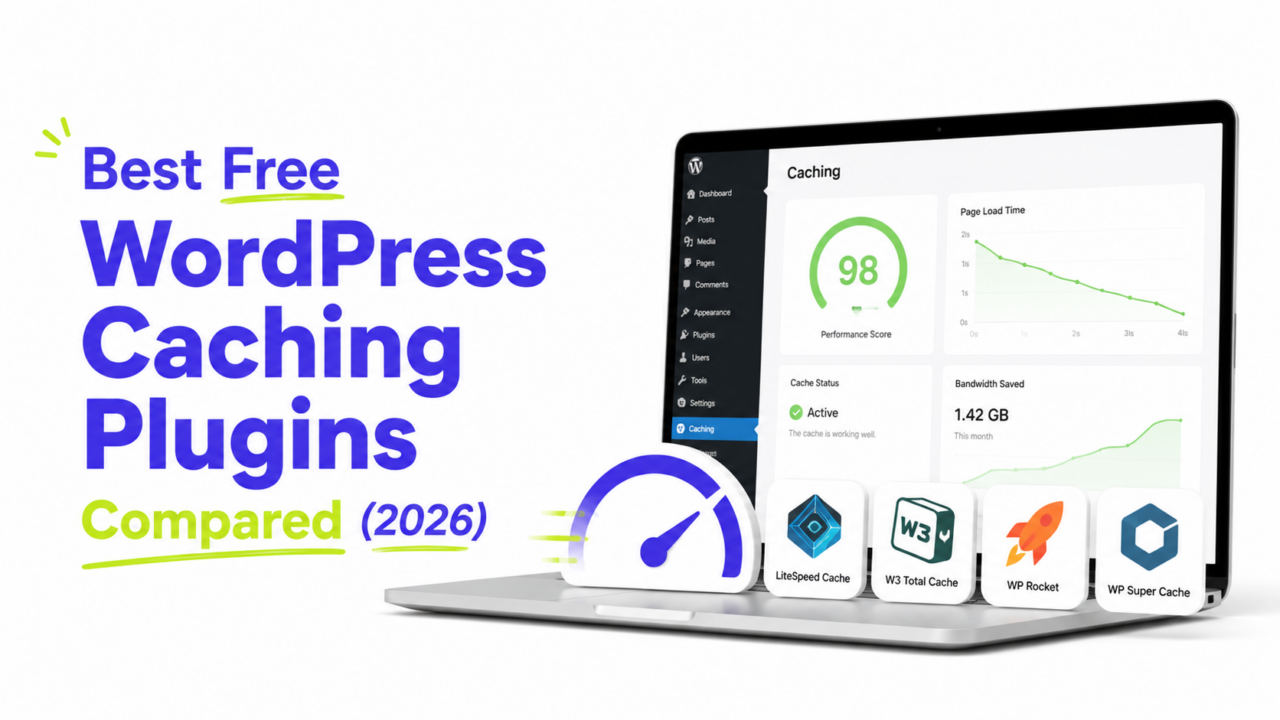
For WordPress, first check whether your host already provides page caching.
If it does not, adding one suitable caching solution can reduce the amount of PHP and database work WordPress needs to repeat for page requests.
I would not install several caching plugins and hope they work together. Use the solution your host recommends or one that fits your server, then test the same page again.
3. Check the LCP element and oversized images
Images are worth fixing when your test actually points to them.
First identify the page’s Largest Contentful Paint element. It may be an image, but it can also be text, so do not assume the biggest image file is automatically the problem.
If an image is involved, check whether:
- Its dimensions are much larger than needed
- The file is poorly compressed
- WebP or AVIF would reduce its size
- It is being lazy-loaded even though it appears near the top
- The browser discovers it too late
Do not deliberately lazy-load a hero image or another likely LCP image. Delaying an important above-the-fold image can make the page load more slowly.
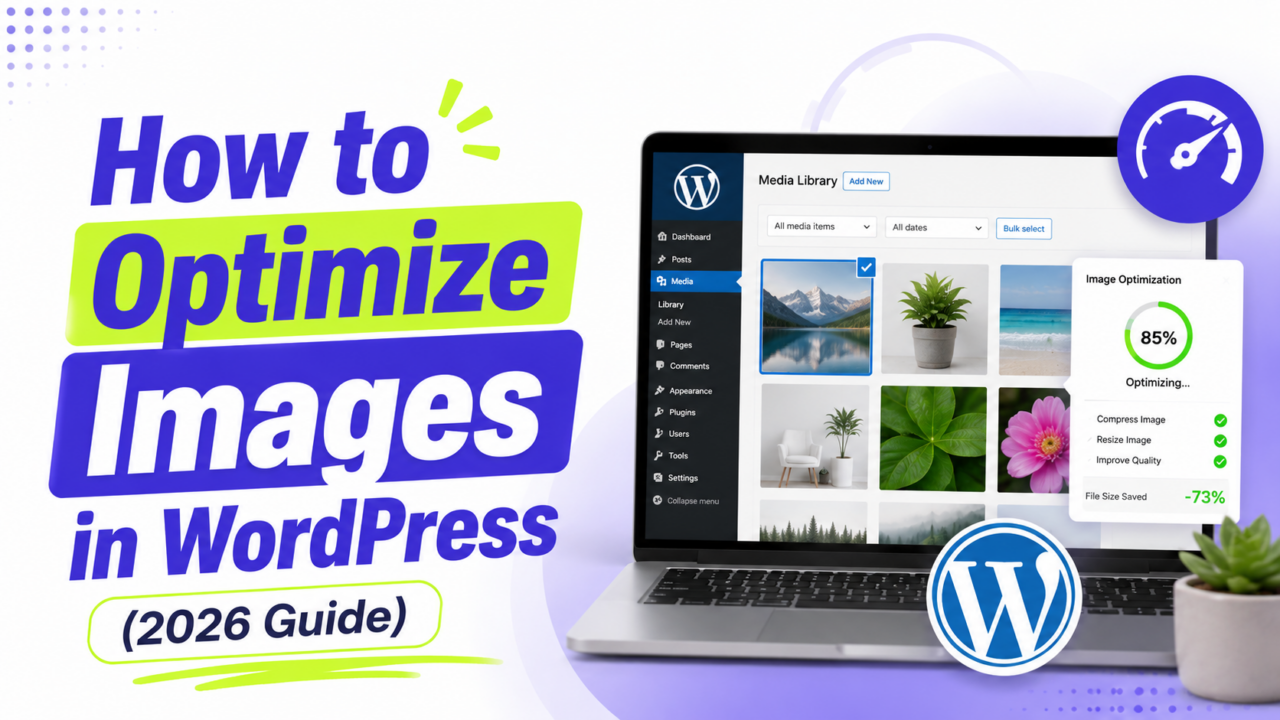
Our guide on how to optimize images in WordPress covers resizing, compression, formats, and lazy loading in more detail.
4. Find heavy plugins and third-party scripts
Do not diagnose plugin problems by counting plugins.
A site with 25 small plugins is not automatically slower than a site with eight. What matters is what each plugin actually does.
Plugins can affect performance through database queries, front-end scripts, external requests, scheduled jobs, security scans, and background processing.
Third-party scripts deserve just as much attention. Common examples include:
- Analytics
- Ad scripts
- Chat widgets
- Video embeds
- Social widgets
- Marketing and tracking tools
Remove plugins you no longer use.
If you suspect an active plugin, test it on a staging site when possible. Disable one suspected plugin, test the same page again, and compare the result.
That gives you evidence. Randomly deactivating everything on a live site does not.
5. Check what your theme is loading
A theme can contribute to slow pages when it loads resources or features the page does not need.
Look for:
- Large sliders
- Animation libraries
- Multiple font families and weights
- Scripts loaded on every page
- Large background images
- Features you never use
Do not replace your theme just because PageSpeed gives you a low score.
If you have a staging site, compare the same content with a known lightweight theme. A large difference is useful evidence that the active theme deserves closer attention.
If the difference is small, switching themes probably is not your highest-value fix.
6. Investigate CSS and JavaScript carefully
CSS and JavaScript can delay rendering or keep the browser busy, but the answer is not simply to combine every file.
Minification can remove unnecessary bytes. Combining files, however, is not automatically better and can sometimes cause extra code to load where it is not needed.
Instead, look for:
- CSS delaying the first render
- Large amounts of unused CSS
- JavaScript that does not need to run immediately
- Scripts loaded on pages that do not use them
- Third-party files delaying important content
If your caching or performance plugin offers CSS or JavaScript optimization, enable changes one at a time and test afterward.
A slightly better score is not worth a broken menu, form, or checkout.
7. Check WordPress Site Health
Go to:
Tools → Site Health
Look for performance warnings that may point to a WordPress-level problem.
One example is excessive autoloaded options. These are plugin and theme settings that WordPress loads automatically on requests, and too much autoloaded data can contribute to slower server processing.
If Site Health flags this, do not start deleting database entries manually.
First identify which plugin, theme, or old configuration is responsible. Database cleanup can break a site when the wrong data is removed.
For a beginner, the warning itself is usually more useful than trying to become a database administrator.
8. Investigate hosting when the evidence points there
Hosting can limit performance, but “cheap hosting” is not a diagnosis.
I would start looking more closely at the host when:
- TTFB remains consistently high
- Cached pages are still slow to begin loading
- Server resources are repeatedly exhausted
- Modest traffic spikes cause major slowdowns
- The host reports CPU, memory, PHP, or database limits being reached
Ask the host what is causing the delay before upgrading blindly.
Better hosting can help when the server is genuinely the bottleneck. It will not fix a huge hero image, unnecessary JavaScript, or a slow third-party service.
9. Add a CDN only when it solves a real problem
A CDN can serve cached resources from locations closer to visitors, which can reduce network latency for a geographically distributed audience.
That does not mean every WordPress site needs one.
If most of your visitors are near your origin server and the server is already fast, the difference may be smaller. Your host may also include a CDN or edge caching already.
Check what you have before adding another service.
10. Retest after each meaningful change
Change one thing, then test the same page again.
If you optimize an oversized image, retest.
If you enable caching, retest.
If you remove a heavy third-party script, retest.
Otherwise, it is easy to end up with several optimization tools and no idea which change made the difference.
Use similar testing conditions and pay more attention to the underlying bottleneck than to getting a perfect PageSpeed score.
Once a problem is no longer showing up, stop optimizing it and move on to the next one.