Switching themes is usually smooth. Usually. But every so often a menu vanishes, a widget area empties out, or a homepage layout scrambles, and if you didn’t back up first, you’re stuck rebuilding from memory.
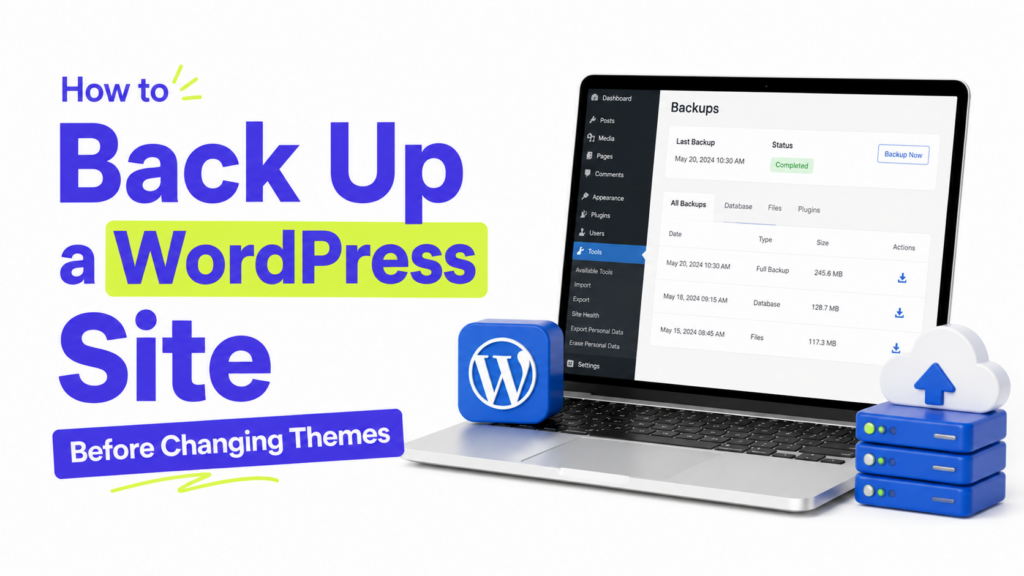
A backup is your undo button. The habit of learning to back up a WordPress site before changing themes takes two minutes, and if anything looks off afterward, you just roll back to exactly how things were. No panic, no guesswork.
In this guide, I’ll show you three ways to back up a WordPress site before changing themes: with a free plugin (easiest), through your hosting dashboard, and manually (for the hands-on crowd). Pick whichever fits you and you’ll be covered.
If you’re here because you’re about to try a new theme, you might also want our guide on how to install a WordPress theme for the next step.
Why Back Up a WordPress Site Before Changing Themes
A WordPress site is really two things: your files and your database.
- Files are your themes, plugins, images, and uploads, everything sitting in your
wp-contentfolder. - Database is where your actual content lives: posts, pages, comments, and settings.
A complete backup captures both. That distinction matters, because some quick methods only grab one half. When you’re changing themes, the database is the piece you most want protected, since that’s where your content and menu settings live.
Method 1: Back Up With a Free Plugin (Easiest)
For most people, a plugin is the way to go. It’s free, it’s a few clicks, and it handles both files and database for you.
UpdraftPlus is the go-to here, with millions of installs and a genuinely simple interface. Here’s how to use it:
- In your dashboard, go to Plugins → Add New, search for UpdraftPlus, then install and activate it.
- Go to Settings → UpdraftPlus Backups.
- Click the big Backup Now button.
- Make sure both “database” and “files” are checked, then confirm.
- Wait a moment, and your backup appears in the list below, ready to restore anytime.
That’s it. If a theme change goes sideways later, you come back to this same screen and click Restore.
A smart move: connect UpdraftPlus to cloud storage like Google Drive or Dropbox in its settings. That way your backup lives off your server, so even if something happens to your hosting, your backup is safe.
Method 2: Back Up Through Your Hosting Dashboard
Most good hosts include backups as part of your plan, and they’re often the fastest option because there’s nothing to install.
The exact steps depend on your host, but the pattern is usually the same:
- Log in to your hosting account (not your WordPress dashboard, your host’s control panel).
- Look for a section called Backups, Backup Manager, or something similar. On cPanel hosts it’s often under the “Files” group.
- Choose to create a full backup or a “one-click” backup.
- Download a copy to your computer if the option is offered, so you have it even if you can’t log in later.
Here’s where to find it on a few popular hosts:
- Bluehost: under Hosting → cPanel → Files → Backup, or the “Backups” area in the account dashboard.
- Hostinger: open hPanel → Files → Backups, where you can generate and restore backups.
- SiteGround: go to Site Tools → Security → Backups to create an on-demand backup.
- DreamHost / cPanel hosts: look under the Files section for “Backup” or “Backup Wizard.”
- Kinsta / WP Engine (managed WordPress hosts): backups live right in the main dashboard, usually under a “Backups” tab, and daily copies are taken automatically.
If you’re not sure whether your host offers this, check their knowledge base or ask their support. Many hosts also take automatic daily backups, though it’s still worth creating a fresh one right before a big change.
Method 3: Manual Backup (For the Hands-On)
You’ll rarely need this, but it’s good to know. A manual backup means grabbing both halves yourself.
For your files: connect to your site with a free FTP tool like FileZilla, then download your entire wp-content folder to your computer.
For your database: log in to phpMyAdmin (usually in your hosting control panel), select your WordPress database, click Export, and save the file.
It’s more fiddly than the other two methods and easy to miss a step, so only reach for it if you’re comfortable poking around your server. For nearly everyone, Method 1 or 2 is the better call.
After You Have a Backup: Change Your Theme Safely
With a backup in hand, you can switch themes with confidence. A couple of habits make it even smoother:
- Note your current setup first. Take a quick screenshot of your menus and widget areas. Themes sometimes reset these, and a screenshot makes it easy to rebuild.
- Preview before you activate. In Appearance → Themes, hover over a theme and click Live Preview to see it applied to your real content without going live.
- Check everything after. Click through your homepage, a post, and your menu once the new theme is active.
If something does break, you already know the fix: head back to your backup and restore. Speaking of which, if your new theme looks off after activating, our guide on fixing a theme that won’t display correctly covers the common causes.
A Few Common Questions
1. How often should I back up my site? For a site you update regularly, a weekly automatic backup plus a manual one before any big change (themes, plugins, updates) is a solid rhythm. A plugin like UpdraftPlus can schedule these for you.
2. Where should I store my backups? Somewhere other than your own server. Cloud storage like Google Drive or Dropbox, or a download on your computer, means your backup survives even if your hosting has a problem.
3. Will backing up slow down my site? Creating a backup uses some resources briefly, so it’s smart to run manual backups during quieter hours. Scheduled backups can be set to run overnight to avoid any impact on visitors.
4. Do I really need a backup just to change a theme? It’s not strictly required, and most theme changes go fine. But a backup takes two minutes and saves you hours if something goes wrong. Think of it as cheap insurance.
Change Themes Without Fear
Learning to back up a WordPress site before changing themes is one of those five-minute habits that saves you from a very bad afternoon. For most people, UpdraftPlus is all you need: install it, click Backup Now, and connect it to cloud storage so your copy lives somewhere safe.
Once you’re backed up, you’re free to experiment. Try that new theme, and if it’s not right, you can always roll back. Ready to make the switch? Here’s how to customize your new free theme without coding once it’s live.