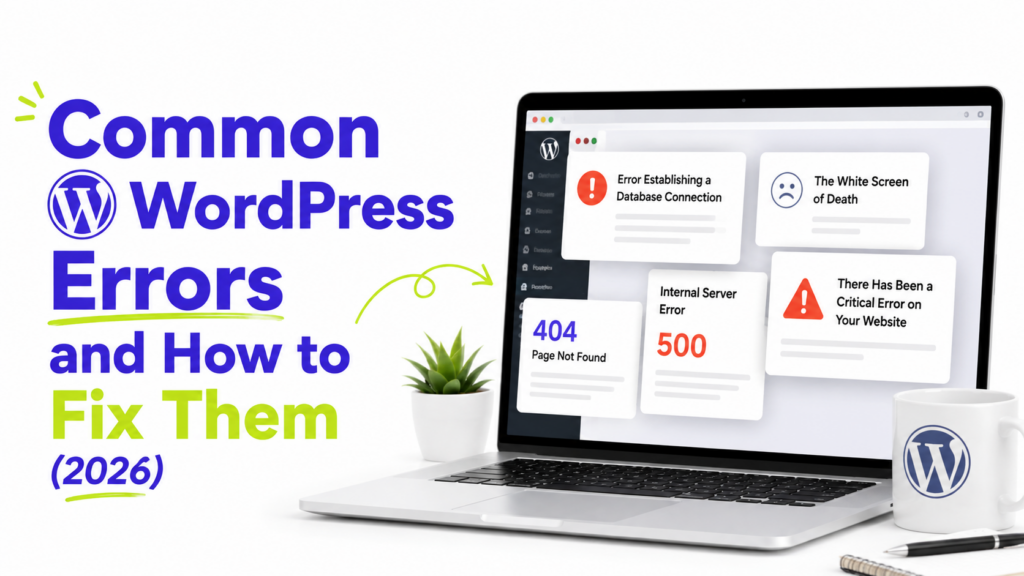
WordPress errors are easier to fix when you start with the exact message or symptom you see.
A database connection error needs a different fix from a 404 page or a blank screen, so find your error below and work through the matching steps.
Before editing WordPress files or database settings, create a backup or hosting snapshot if you still have access to your hosting account.
Quick guide: what to check first
- White screen or critical error: check your Recovery Mode email, then plugins and the active theme.
- 500 error: check recent changes, server logs, plugins, and
.htaccessif your server uses it. - Database connection error: check database credentials and the database server.
- Maintenance message: remove a stale
.maintenancefile. - Posts returning 404: save your permalink settings again.
- Memory exhausted: check the memory limit and what is using it.
1. White screen or “There has been a critical error”
A blank page or WordPress critical error often points to a PHP problem caused by a plugin, theme, incompatible code, or another fatal error.
Check your site’s administration email
WordPress has a built-in Recovery Mode for some fatal errors.
Check the Administration Email Address used by your site. WordPress may have sent a message saying the site is experiencing a technical issue, along with a Recovery Mode link.
If you receive one, use it. WordPress may identify the plugin or theme causing the error and let you log in without disabling everything else.
When the dashboard is available, you can normally find this address under:
Settings → General → Administration Email Address
If there is no Recovery Mode email
Think about what changed just before the site broke.
If you installed or updated a plugin, try disabling that plugin first.
If you cannot reach the dashboard, open your hosting file manager or connect through SFTP. Go to:
/wp-content/plugins/
Rename the folder of the plugin you suspect so WordPress can no longer load it.
If you do not know which plugin is responsible, temporarily disable all plugins and reactivate them one at a time after the site returns.
If plugins are not the problem, test with another known-good theme.
2. 500 Internal Server Error
A 500 error means something failed on the server, but the response does not tell you exactly what.
Start with anything that changed recently, such as a plugin update, theme update, or server configuration change.
If your server uses an .htaccess file, check that too.
Using your hosting file manager or SFTP, find .htaccess in the WordPress root folder and rename it to:
.htaccess_old
Reload the site.
If that fixes the error, go to Settings → Permalinks and click Save Changes after you can access WordPress again.
Not every server uses .htaccess. Nginx, for example, does not use it in the same way. If you do not have an .htaccess file, do not create one just for this fix.
If the error remains, check your plugins and hosting error logs. Your host can also help identify a server-side error that WordPress is not showing you.
3. Error establishing a database connection
This message means WordPress cannot connect to the database it needs to load your site.
Open wp-config.php and check:
DB_NAMEDB_USERDB_PASSWORDDB_HOST
These values need to match the database details in your hosting account.
Be careful when editing the file. A typo can stop WordPress from connecting even if the original settings were correct.
If the credentials match and the error appeared without you changing anything, the database server itself may be unavailable.
Check your hosting status page or contact your host.
For this error, I would not spend time changing plugins, themes, or cache settings until the database connection is working.
4. “Briefly unavailable for scheduled maintenance”
WordPress temporarily enters maintenance mode while updating WordPress core, a theme, or a plugin.
Normally, the message disappears when the update finishes. If an update is interrupted, a .maintenance file can be left behind.
Open your hosting file manager or connect through SFTP and look in the main WordPress directory for:
.maintenance
Delete that file and reload the site.
After the site returns, check Dashboard → Updates and make sure the interrupted update completed. If not, run it again after confirming you have a backup.
5. Posts return 404 errors but the homepage works
If your homepage opens normally but posts or pages suddenly return 404 errors, check your permalink settings first.
Go to:
Settings → Permalinks
Do not change the permalink structure. Just click Save Changes.
This refreshes WordPress’s permalink settings and, on compatible server setups, can update the rewrite rules used for your URLs.
Test one of the affected pages again.
If the problem remains, the next step depends on your server. On Apache-compatible servers, rewrite rules or .htaccess permissions may be involved. On Nginx, your host may need to check the server’s rewrite configuration.
If only one page returns a 404, make sure the page still exists and its URL has not changed.
6. “Allowed memory size exhausted”
This error means a PHP process tried to use more memory than the server allowed.
You may see:
Fatal error: Allowed memory size exhausted
Start by checking the PHP memory limit in your hosting dashboard or, if WordPress is still accessible:
Tools → Site Health → Info
WordPress also supports the WP_MEMORY_LIMIT setting in wp-config.php, but the server’s PHP memory limit can still cap how much memory WordPress is allowed to use.
If you are not sure what your hosting setup allows, check with your host before changing it.
If the error keeps returning, look at what changed before it started. A plugin, theme, import process, or other task may be using more memory than expected.
For a site that also feels unusually slow or resource-heavy, see our guide on why your WordPress site is slow.
How to get a useful WordPress error log
If the cause is still unclear, WordPress debugging can help.
On a live site, I would log errors instead of displaying them publicly.
In wp-config.php, you can use:
define( 'WP_DEBUG', true );
define( 'WP_DEBUG_LOG', true );
define( 'WP_DEBUG_DISPLAY', false );
WordPress can then write debugging information to:
/wp-content/debug.log
Check the log for errors recorded around the time the site failed.
Turn debugging back off when you are finished.
If you are not comfortable editing wp-config.php, your hosting support team may be able to check the PHP or server error logs for you.
If your site loads normally but the layout, header, images, or menus look wrong after changing themes, that is a different problem. See our guide on how to fix a WordPress theme that is not displaying correctly instead.