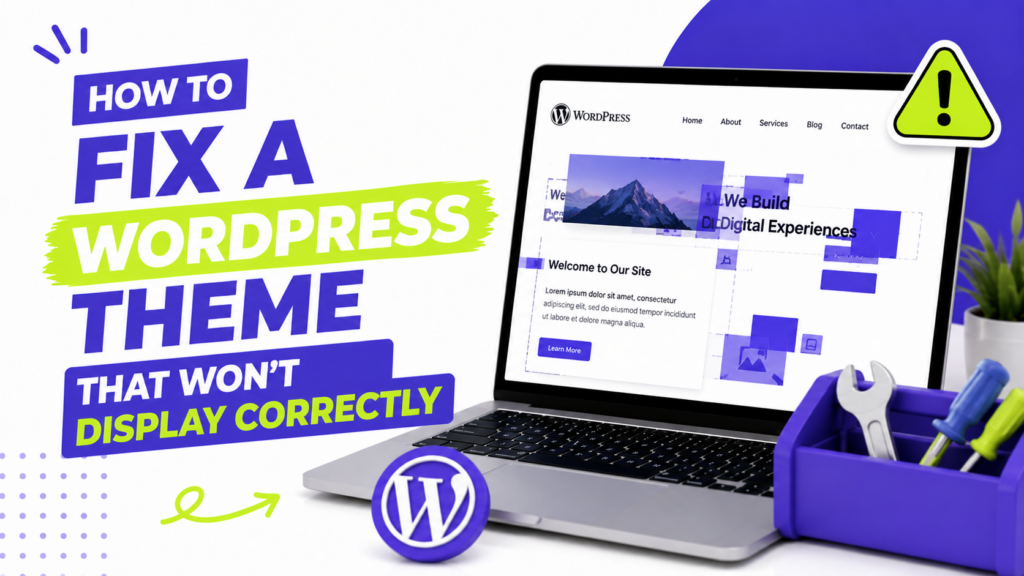
If your WordPress theme is not displaying correctly, start with the symptom you actually see.
Still seeing the old design? Clear the cache. Theme looks nothing like the demo? Check for a starter site or demo import. Only the homepage looks wrong? Check Settings → Reading. Missing a menu, header, or footer? Check the theme’s navigation settings.
For a site that looks completely broken, start at the top and work through the fixes below.
If this is an existing site, make a backup before changing several settings. Our guide on how to back up WordPress before changing themes shows you how.
1. Clear the cache
Cache is the first thing I would check if the site is showing old colors, layouts, or styling after you changed themes.
Open the site in a private or incognito window first. If it looks correct there, your browser may still be showing an older version.
Next, clear any cache already running on your site. Depending on your setup, that may include:
- Your browser cache
- A WordPress caching plugin
- Your hosting provider’s cache
- A CDN cache, if you use one
Look for buttons such as Clear Cache, Purge Cache, or Purge All.
Then reload the site.
You do not need to install a caching plugin just to fix this problem. If you are not already using one, move on.
2. If the theme looks nothing like the demo, check for a starter site
A newly activated theme does not always look like the screenshots on its website.
The demo may use its own homepage, images, menus, blocks, and other content that are not included when you simply activate the theme.
Some themes provide a:
- Starter site
- Starter template
- Demo import
- Import demo data option
Look in the theme’s settings or documentation. Some themes also ask you to install a companion plugin before starter designs become available.
If you are working on an existing website, be careful with demo imports. They can add pages, images, menus, and other content that you may not want.
And if your theme does not include a demo importer, nothing is necessarily wrong. You may simply need to build the layout yourself. Our guide on how to customize a free WordPress theme without coding covers that.
3. If only the homepage looks wrong, check the homepage setting
If blog posts and other pages look fine but your homepage does not, go to:
Settings → Reading
Find Your homepage displays.
If you want to use a designed homepage, select A static page and choose the correct page from the dropdown.
Save the changes and check the site again.
This is especially worth checking after importing a starter site. WordPress may have the new homepage available without actually using it as the front page.
If you use a block theme and the correct page is already selected, go to Appearance → Editor and check the template being used for the homepage.
4. If the menu, header, or footer disappeared, check the theme settings
Changing themes can also change where your navigation and other site-wide areas appear.
What you need to check depends on the type of theme.
Classic themes
Look under:
Appearance → Menus
Make sure your menu is assigned to the correct location, such as Primary or Header Menu.
If sidebar or footer content is missing, also check:
Appearance → Widgets
Different themes offer different menu and widget areas, so an item that appeared in one place with your old theme may need to be assigned again.
Block themes
Go to:
Appearance → Editor
Block themes manage navigation, headers, footers, templates, and other site-wide areas in the Site Editor.
If you switched to a block theme and no longer see the old Menus or Widgets screens, that can be normal.
5. Check for a plugin conflict
If parts of the layout are actually broken, buttons stop working, or some content disappears, a plugin may be conflicting with the new theme.
Do not start deleting plugins.
If your host offers staging, test there first. Then:
- Deactivate the plugins.
- Check the site.
- If the problem disappears, reactivate the plugins one at a time.
- Check the site after each one.
When the problem returns, you have found a likely conflict.
Before replacing anything, check whether the plugin and theme have updates available. It is also worth checking the developer’s support page for known compatibility problems.
Be more careful if you test on a live site. Deactivating a plugin can temporarily remove forms, shop features, page-builder content, or other parts of the site.
6. Reinstall the theme if WordPress says it is broken
If WordPress showed an error during installation or Appearance → Themes reports that the theme is broken, download a fresh copy from the original source and install it again.
A common error is:
The theme is missing the style.css stylesheet.
This often happens because the wrong ZIP file was uploaded.
Some marketplaces give you one large download containing documentation, plugins, license files, and the actual theme ZIP. Check the files you downloaded and make sure you are uploading the WordPress theme itself.
Also make sure it is a theme, not a plugin.
Our guide on how to install a WordPress theme covers the correct ZIP upload process.
If a clean copy still shows as broken, I would stop reinstalling it and check the theme developer’s documentation or support instead.
7. If the theme suddenly broke, check what changed
If the theme worked before and suddenly looks wrong, think about what happened just before the problem started.
Did you:
- Update WordPress?
- Update the theme?
- Update or install a plugin?
- Change something in a page builder?
- Edit a template in the Site Editor?
- Add custom CSS?
That gives you a much better starting point than changing several unrelated settings.
Back up the site first, then test one change at a time. If the problem appeared immediately after a theme or plugin update, check the developer’s support information for known issues.
If the site is badly broken and you have a recent working backup, restoring it may be the quickest way to get the site working again while you investigate the cause.
What if the theme only looks wrong on mobile?
If the desktop version looks fine, check the site on another phone or in a private browser window first. This helps rule out an old cached version.
Then check any mobile or responsive settings in your theme or page builder.
Pay attention to:
- Navigation that does not open
- Text or images running off the screen
- Sections appearing in the wrong order
- Buttons that are too wide
- Custom CSS that only affects smaller screens
If the problem started after adding a page-builder or optimization plugin, include that plugin when you test for conflicts.
A mobile-only problem usually does not require reinstalling the whole theme.
What if images look stretched, cropped, or blurry?
A new theme may use different image sizes from your old one.
If the images still exist in your Media Library but featured images now look badly cropped or blurry, the theme may be asking WordPress for image sizes that were not created when those older images were uploaded.
Regenerating thumbnails can create the missing sizes for existing images.
Only do this when the problem is clearly related to image sizing. It will not fix a missing menu, wrong homepage, or broken styling.
Still not displaying correctly?
At this point, try activating another known-good theme temporarily.
If another theme displays normally, the problem is more likely to involve the theme you were using or its compatibility with something else on the site.
If several themes show the same problem, the cause is probably outside the theme itself.
That is the point where I would stop changing random settings and check your hosting logs, WordPress errors, or the support documentation for the plugin or theme involved.
For problems that go beyond the theme, see our guide to common WordPress errors and fixes.