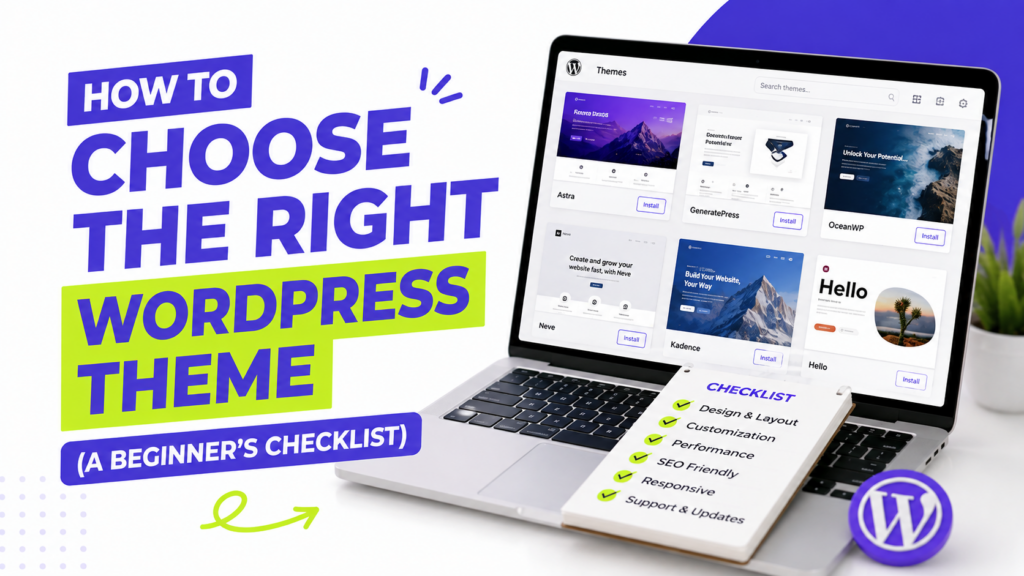
Scroll through the WordPress theme directory and you’ll find thousands of options, all promising to be fast, flexible, and perfect for your site. It’s genuinely overwhelming, and picking the wrong one means redoing work later, or worse, dragging a slow, bloated theme through your site’s entire life. Learning how to choose the right WordPress theme up front saves you both headaches.
The good news is that choosing the right WordPress theme comes down to checking a short, specific list of things, not gut feeling. In this guide, I’ll walk through exactly what to look for, in order, so you can choose with confidence instead of guessing. Let’s find your match.
How to Choose the Right WordPress Theme: Start With Your Needs
Before browsing a single theme, get clear on your site’s purpose. A blog, a business site, a portfolio, and an online store all need different things from a theme.
Ask yourself:
- Am I writing content-first, or showcasing products or work visually?
- Do I need e-commerce support, or just static pages?
- How much customization do I actually want to do myself?
A theme built for one purpose rarely excels at another, so this narrows your search immediately.
Step 2: Check the Speed and Code Quality
This is the single most important technical factor, and the easiest to overlook. A beautiful theme that loads slowly will cost you visitors and search rankings before they ever see your content.
Look for these signals before installing:
- File size. Lighter themes (well under 100KB) tend to load faster. Themes like GeneratePress and Hello Elementor are known for being especially lean.
- Demo performance. Run the theme’s live demo through PageSpeed Insights to see real numbers before committing.
- Clean, minimal code. Themes that avoid unnecessary scripts and bloated features tend to stay fast even as your site grows.
Step 3: Confirm It’s Actively Maintained
An abandoned theme is a security risk waiting to happen. WordPress, PHP, and plugins all update regularly, and a theme that doesn’t keep pace will eventually break.
On the WordPress.org theme directory page, check:
- Last updated date. Anything more than six months old deserves a second look.
- Active installations. A high number (100,000+) suggests a track record of reliability.
- Support forum activity. Are the developers actually responding to questions?
Step 4: Test Mobile Responsiveness
More than half of all web traffic is mobile, so this isn’t optional. Every reputable theme claims to be “responsive,” but claims and reality don’t always match.
Open the theme’s live demo on your phone, or shrink your browser window to check it directly. Look for text that stays readable, buttons that are easy to tap, and layouts that don’t require horizontal scrolling. Our guide on making a WordPress theme mobile-friendly covers what good mobile design actually looks like.
Step 5: Check Block Editor and Page Builder Compatibility
Decide how you want to build pages, then confirm the theme supports it.
- If you plan to use the free built-in block editor (Gutenberg), make sure the theme is described as “block theme” or “full site editing” compatible.
- If you prefer a page builder like Elementor, check the theme explicitly supports it (like Astra, which pairs well with most builders), since not all do equally well.
Mismatching these two causes frustration down the line, so settle it before you commit.
Step 6: Look for Genuine Customization Without Bloat
A good theme gives you real control, colors, fonts, layouts, without piling on features you’ll never use. Excessive built-in sliders, animations, and widgets often mean more weight for no benefit.
Check the Customizer or Site Editor options before installing. If it feels like flipping through a hundred settings you don’t need, that’s a signal the theme may be heavier than it should be.
Step 7: Read Real Reviews, Not Just Screenshots
Demo screenshots always look flawless. Real user reviews tell you what actually happens after installation: hidden costs, missing features in the free version, or support that goes quiet.
Check the reviews tab on the WordPress.org theme page specifically, and search for the theme name alongside “review” to see independent write-ups too.
Step 8: Consider the Free-to-Premium Path
Many popular free themes have a paid “Pro” version that unlocks extra templates, blocks, or support. This isn’t a downside, it’s actually useful information: it tells you the free version is a genuine on-ramp, not a stripped-down trial designed to frustrate you into upgrading.
Before installing, glance at what the premium tier adds. If the free version already covers everything on your checklist, you likely never need to pay. If you’re drawn to a specific premium feature, at least you’ll know it exists before you build your whole site around the free version.
1. How do I choose between two similar WordPress themes? Compare their file size and demo speed first, since that difference compounds over your site’s lifetime. If speed is close, let active installs and recent updates be the tiebreaker.
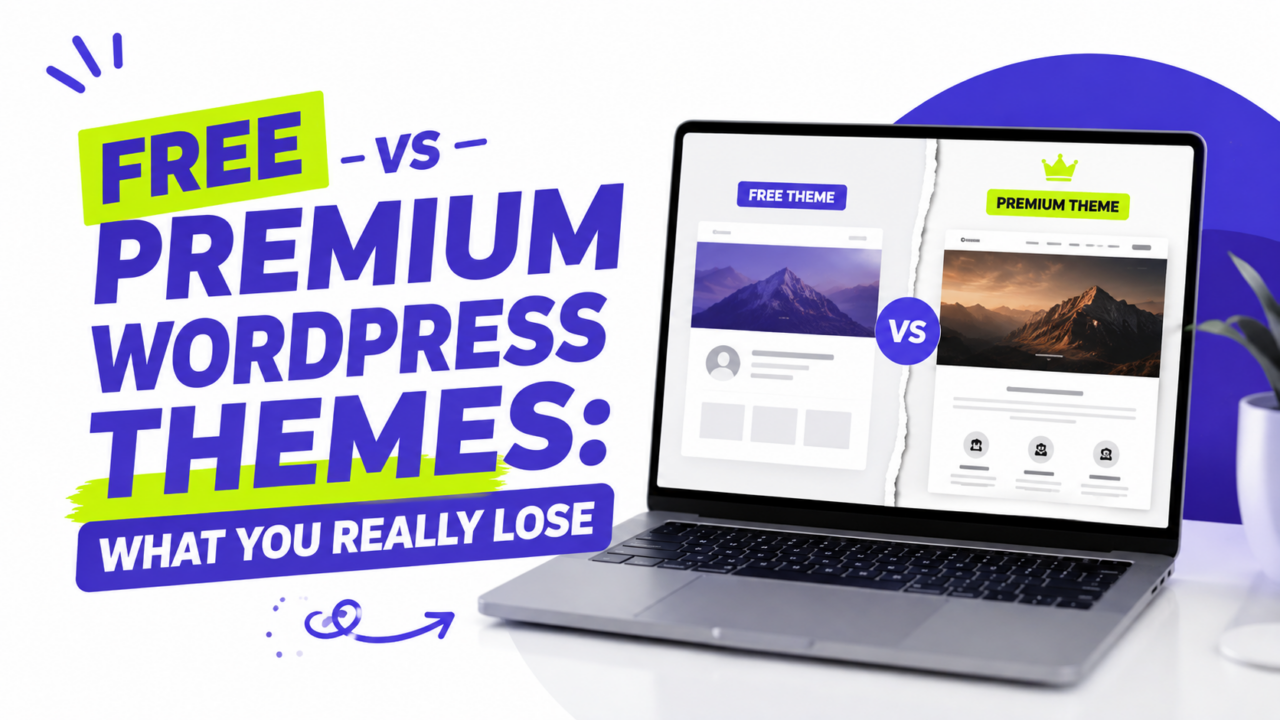
2. Should I choose a free or premium theme? Most sites do perfectly well on a free theme. Our comparison of free vs premium WordPress themes breaks down exactly what you gain by paying, and when it’s worth it.
3. Can I switch themes later if I choose wrong? Yes, though it takes some rework, especially with page content built around a specific theme’s features. Back up your site first with our backup guide before switching.
4. Do I need a different theme for every type of site? Not necessarily. Versatile themes like Astra or GeneratePress work well across blogs, business sites, and portfolios, so one well-chosen theme can often serve multiple purposes.
Choose Once, Choose Well
Picking the right WordPress theme isn’t about finding the flashiest demo, it’s about checking the boxes that actually matter: purpose, speed, maintenance, mobile support, and genuine customization without bloat.
Work through this checklist before you install anything, and you’ll save yourself the headache of switching later. For a curated starting point, our roundup of the best free WordPress themes for 2026 is a solid place to begin.