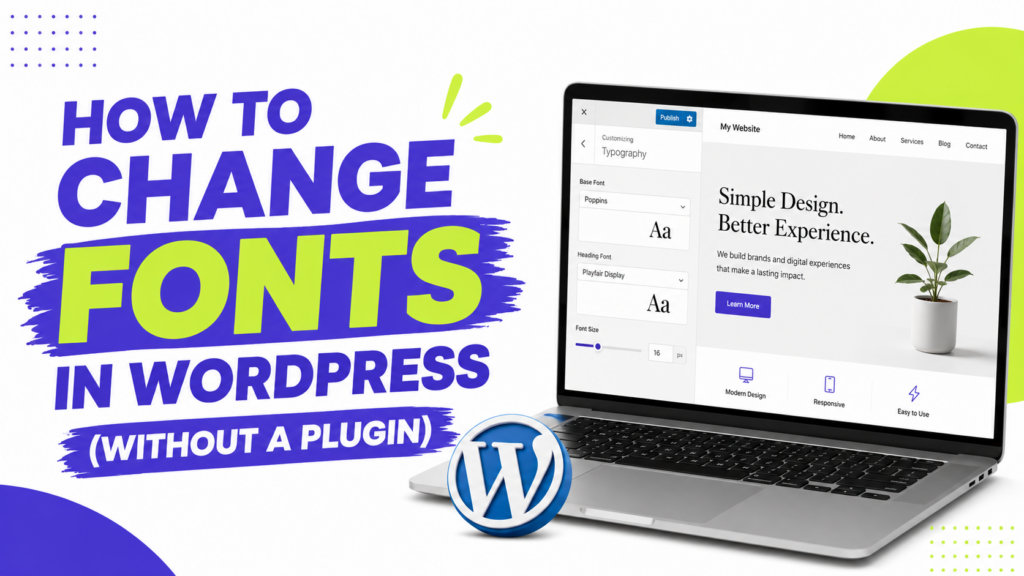
Your theme’s default font works, but it doesn’t quite feel like you. Maybe it’s too plain for a creative brand, or too playful for a professional one. The good news: changing fonts in WordPress rarely requires a plugin, and most themes give you this control built right in.
In this guide, I’ll show you how to change fonts in WordPress using nothing but the tools already in your dashboard, with a code-based backup method for themes that don’t offer a built-in option. Let’s get your typography looking right.
Option 1: Use the Customizer (Most Themes)
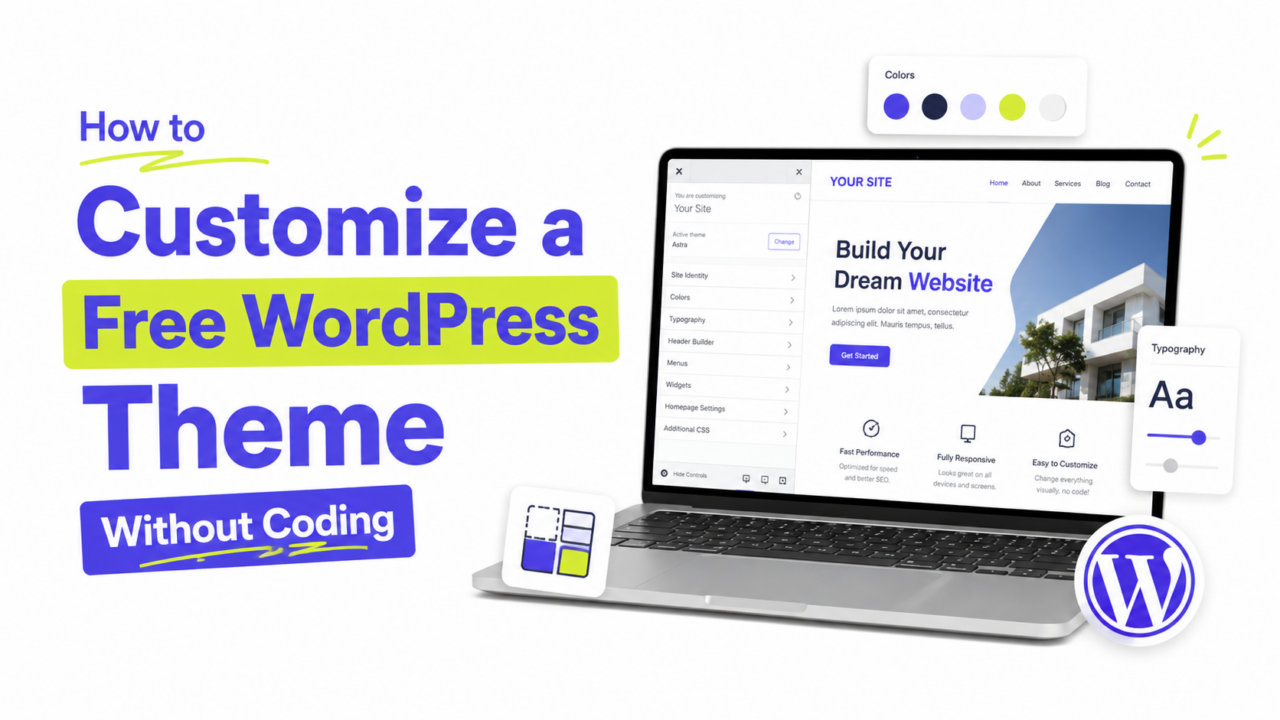
Most modern themes, especially the popular free ones, include font settings directly in the Customizer. This is the easiest and safest route, since it doesn’t touch any code.
- Go to Appearance → Customize.
- Look for a section called Typography, Fonts, or sometimes tucked under General Settings.
- Choose fonts for your headings and body text separately, and preview the change live before saving.
Themes like Astra, GeneratePress, and Kadence all include solid font controls in their free versions. If you see a Typography panel specifically, this is the easiest path, so try it first.
Option 2: Use the Site Editor (Block Themes)
If you’re running a modern block theme, font settings live in a different, more visual place.
- Go to Appearance → Editor.
- Click Styles (the half-black, half-white circle icon).
- Select Typography, then choose fonts for headings and body text.
Block themes like Twenty Twenty-Five often include a curated set of font pairings here, so you can preview combinations without knowing anything about design theory.
Option 3: Add Google Fonts With a Code Snippet
If your theme’s built-in options are limited, or you want a specific font not offered, you can add any Google Fonts typeface with a small snippet, no plugin required.
- On the Google Fonts site, select your font and copy the provided
<link>embed code. - Add a child theme if you don’t already have one, so your changes survive theme updates.
- In your child theme’s
functions.php, enqueue the font:
add_action('wp_enqueue_scripts', function () {
    wp_enqueue_style('custom-google-font', 'https://fonts.googleapis.com/css2?family=Your+Font+Name:wght@400;700&display=swap', [], null);
});- Then apply it with a bit of custom CSS under Appearance → Customize → Additional CSS:
body {
    font-family: 'Your Font Name', sans-serif;
}
h1, h2, h3 {
    font-family: 'Your Font Name', sans-serif;
}
Our guide on adding custom CSS covers this step in more detail if you’re new to it.
What if the Font Change Doesn’t Show Up?
Sometimes you set a new font, save, and your site still looks unchanged. Before assuming something’s broken, check these three things:
- Clear your cache. If you have a caching plugin active, it may be serving an old, cached version of your page. Clear the cache and reload.
- Check for browser caching. Do a hard refresh (Ctrl+Shift+R on Windows, Cmd+Shift+R on Mac) to force your browser to load the latest version.
- Confirm you edited the right element. Some themes separate “body font” from “widget font” or “menu font” as distinct settings, so make sure you changed the one that actually applies to what you’re looking at.
If none of that works and you added a font through the code snippet method, double-check the font name in your CSS matches exactly what you enqueued, including capitalization.
Choosing a Font That Actually Works
Changing the font is easy. Choosing a good one takes a bit more care.
- Pick two fonts, maximum. One for headings, one for body text. More than that starts to look chaotic.
- Prioritize readability for body text. Save decorative or stylized fonts for headings only.
- Set body text to at least 16px. Anything smaller strains the eyes, especially on mobile.
- Test your pairing on a real page, not just the Customizer preview. A combination that looks fine in a small preview window can feel different across a full page of content.
Our full guide on WordPress typography basics covers pairing and sizing in depth if you want to get this exactly right.
A Few Common Questions
1. Can I change fonts in WordPress without any coding? Yes, for most themes. Check Appearance → Customize or Appearance → Editor → Styles first, since the vast majority of modern free themes include font settings you can change with just a few clicks.
2. Will changing fonts slow down my site? It can, slightly, especially if you load several font weights you don’t use. Stick to two font families and only the weights (like regular and bold) you actually need.
3. What if my theme doesn’t have a font option at all? Use the Google Fonts code snippet method described above. It works with any theme, since it simply adds the font and applies it through CSS.
4. Are Google Fonts really free? Yes, completely free for personal and commercial use, with no attribution required. It’s the most reliable source for web fonts.
Change Fonts in WordPress, One Click at a Time
Changing fonts in WordPress is one of the fastest ways to make a generic theme feel like your own brand, and for most people, it takes just a few clicks in the Customizer or Site Editor. No plugin, no fuss.
Start with your theme’s built-in typography settings, and reach for the code snippet only if you need a font it doesn’t offer. Once your fonts are set, our guide on WordPress typography basics helps you pair and size them like a pro.