Sometimes your theme gets you 95% of the way there. The layout’s good, the colors are close, but that one button is the wrong shade, or the spacing above your headings feels cramped. The Customizer doesn’t have a setting for it. The fix is to add custom CSS, and you’re about to see how.
That last 5% is exactly what custom CSS is for. With a few lines, you can fine-tune almost any visual detail on your site, colors, spacing, font sizes, borders, without editing theme files or breaking anything.
And here’s the reassuring part: you don’t need to be a developer. In this guide, I’ll show you where to add custom CSS safely, how to find the right code, and a few beginner-friendly snippets you can copy and adjust. Let’s get into it.
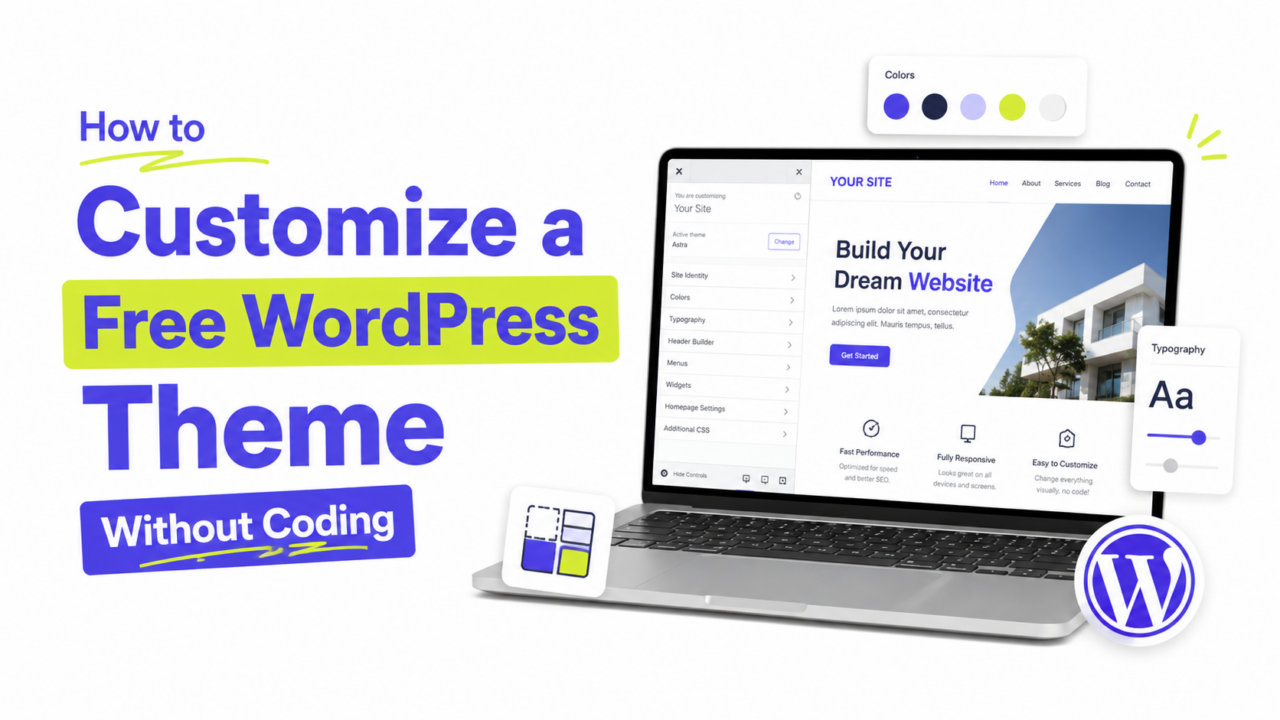
New to tweaking your theme? Our guide on customizing a free theme without code covers the no-CSS basics first.
What Adding Custom CSS Actually Means
CSS (Cascading Style Sheets) is the language that controls how your site looks, as opposed to what it says. Colors, sizes, spacing, borders: that’s all CSS.
The good news for beginners: you don’t have to write it from scratch. Most of the time, you’ll find a snippet, paste it in, and change a value or two (like swapping a color code). That’s it. You’re adjusting, not building from zero.
Where to Add Custom CSS (The Safe Way)
This is the most important part of learning to add custom CSS. Add your CSS in the right place and it’s completely safe and survives theme updates. Add it in the wrong place and you risk losing it. Here are your safe options, easiest first.
Option 1: The Customizer’s Additional CSS box (recommended)
Every WordPress site lets you add custom CSS here, and it’s the safest, simplest spot.
- Go to Appearance → Customize.
- Click Additional CSS at the bottom of the panel.
- Type or paste your CSS into the box. You’ll see changes preview live on the right.
- Click Publish.
Your CSS is stored separately from your theme files, so it stays put even when your theme updates. For most people, this is the only place you’ll ever need.
Option 2: The Site Editor (for block themes)
If you run a block theme like Twenty Twenty-Five and don’t see “Customize,” you can add CSS through the Site Editor instead. Go to Appearance → Editor → Styles, click the three-dot menu, and choose Additional CSS. Same idea, same safety.
Option 3: A code plugin (for larger projects)
If you’re managing a lot of custom code, a plugin like WPCode or Simple Custom CSS and JS gives you an organized place to keep it. Overkill for a few tweaks, but handy once your snippets pile up.
One thing to avoid: pasting CSS directly into your theme’s style.css file. If your theme updates, you’ll lose it. That’s what the options above are designed to prevent. If you genuinely need file-level edits, use a child theme instead.
How to Find What to Target
To style something, you need to tell CSS which element you mean. Your browser’s built-in inspector makes this easy.
- On your site, right-click the element you want to change (a button, a heading, etc.).
- Choose Inspect.
- A panel opens showing the page’s code, with your element highlighted. Look for its “class” (something like
.entry-titleor.wp-block-button).
That class is your target. You’ll use it in your CSS to say “style this specific thing.”
Beginner-Friendly CSS Snippets to Try
Here are a few practical examples. Paste them into your Additional CSS box and adjust the values. Don’t worry about memorizing the syntax, just change the parts that are obviously colors or sizes.
Change your link color:
a {
  color: #1a73e8;
}
Make your headings bigger:
h2 {
  font-size: 32px;
}
Add space above your headings:
h2 {
  margin-top: 40px;
}
Round the corners on buttons:
.wp-block-button__link {
  border-radius: 8px;
}
In each case, the value is the part to play with. Swap #1a73e8 for any color code, change 32px to your preferred size, and preview as you go.
Tips for Working With CSS Safely
A few habits keep your experiments stress-free:
- Change one thing at a time. Add a snippet, preview it, then move on. It’s much easier to spot what a single change did.
- Keep a backup of your CSS. Paste your snippets into a plain text file too, so you have a copy if you ever switch themes.
- Use the live preview. The Customizer shows changes instantly before you publish, so experiment freely.
- Comment your code. Add notes like
/ bigger headings /above a snippet so you remember what it does later.
If something looks off after a change, just delete that snippet, nothing is permanent, and you can’t break your site from the Additional CSS box.
A Few Common Questions
1. Will custom CSS disappear when I update my theme? Not if you add it in the right place. The Customizer’s Additional CSS box and the Site Editor store your CSS separately from theme files, so it survives updates. Only CSS pasted directly into theme files gets lost.
2. Do I need to know how to code? No. Most beginners find a snippet, paste it in, and adjust a value like a color or size. You’re editing, not writing from scratch, and you can preview every change before saving.
3. How do I find the right element to style? Right-click the element on your site and choose Inspect. Your browser shows you its class name (like .entry-title), which you then use as the target in your CSS.
4. What if my custom CSS isn’t working? Usually it’s a targeting issue or a more specific theme style overriding yours. Double-check the class name with Inspect, and make sure you clicked Publish. Clearing your cache can also help the change show up.
Make It Truly Yours
Learning to add custom CSS is how you turn a good-looking free theme into your site, down to the last detail. The key is adding it safely: use the Customizer’s Additional CSS box (or the Site Editor for block themes), never paste it into raw theme files, and lean on Inspect to find what to target.
Start small. Change a color, adjust some spacing, preview as you go. Once you see how a few lines can transform the look of your site, that last 5% stops being frustrating and starts being fun.