Here’s a mistake that catches a lot of people: you edit your theme’s files to tweak something, everything looks great, and then a theme update rolls in and wipes every change you made. Poof. Gone.
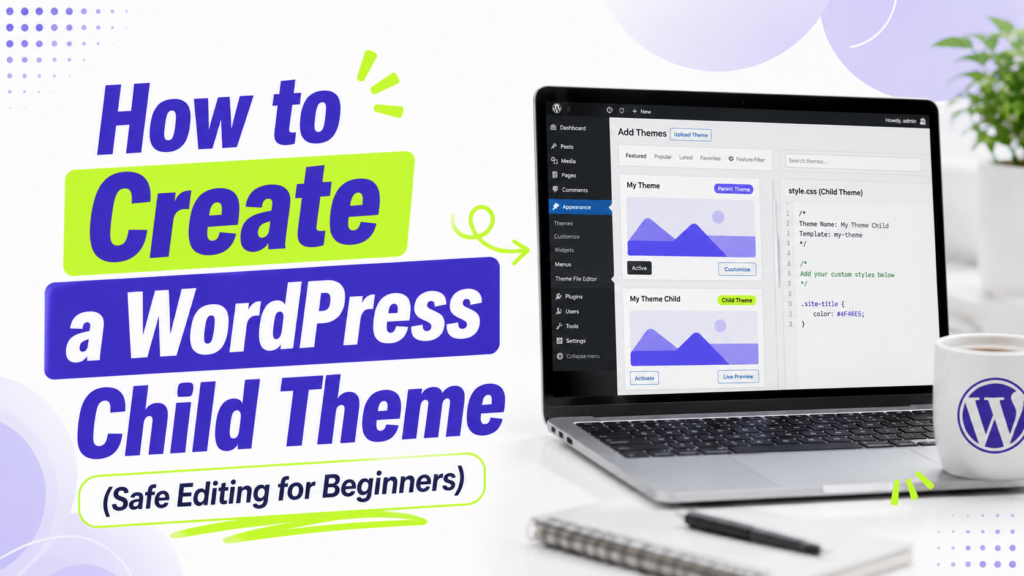
Learning to create a WordPress child theme prevents exactly that. A child theme is a separate theme that inherits everything from your main theme (the “parent”), but keeps your customizations safe when the parent updates. Think of it as a protective layer where your edits live untouched.
In this guide, I’ll show you when you actually need a child theme (spoiler: not as often as you’d think), and how to create a WordPress child theme the easy way for both classic and block themes. Let’s get into it.
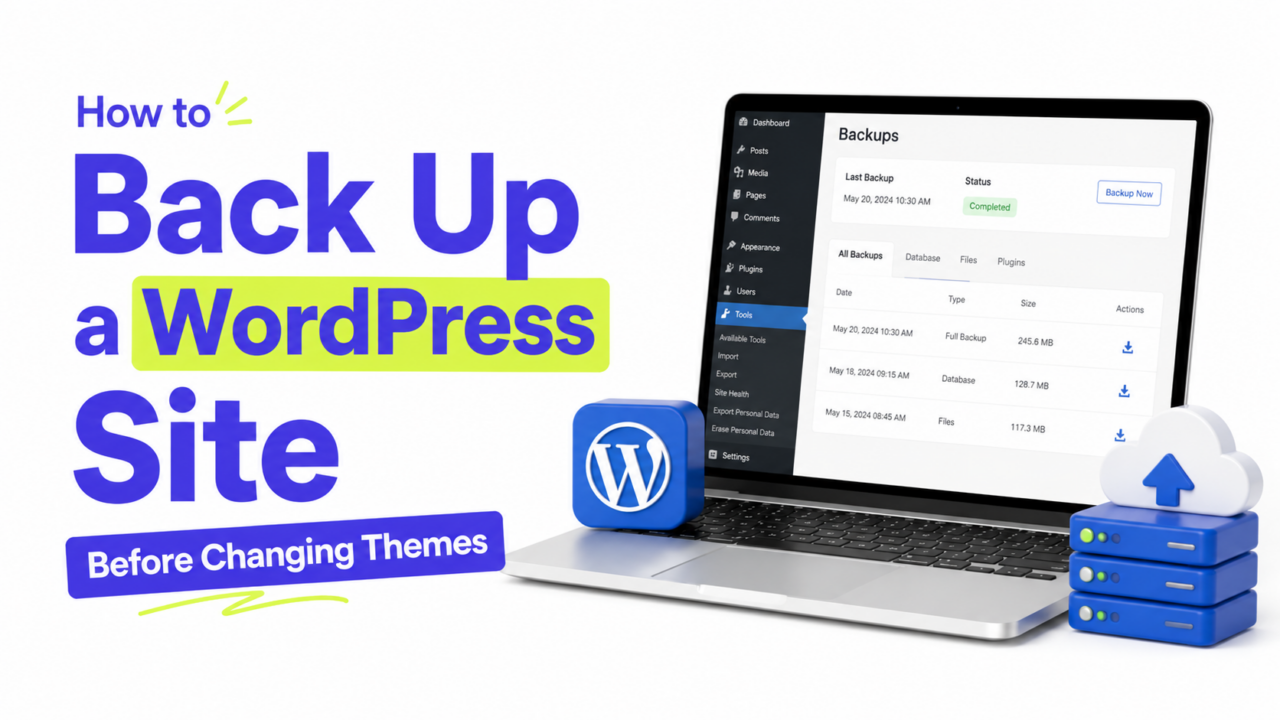
First, back up your site so you can experiment safely. Our guide on backing up WordPress before making changes takes two minutes.
Do You Need to Create a WordPress Child Theme?
Let’s save you some work. A lot of beginners create a child theme when they don’t need one.
- Just want to change colors, fonts, or spacing? You probably don’t need a child theme. The Customizer’s Additional CSS box handles this safely, and it survives updates. Our guide on adding custom CSS to any free theme covers it.
- Just want to add a tracking code or snippet? A header plugin like WPCode does that without a child theme.
- Want to edit template files, change PHP, or make deeper structural changes? This is when a child theme earns its place.
If you’re in that last group, read on. If not, you might not need this at all, and that’s a good thing.
Which Kind of Theme Do You Have?
This matters, because the method is completely different depending on your theme type. Quick check under Appearance:
- Classic themes (like Astra, GeneratePress, OceanWP) use PHP template files. You’ll create a child theme the traditional way.
- Block themes (like Twenty Twenty-Five, and every default theme since Twenty Twenty-Two) use HTML templates and a
theme.jsonfile. These need a different, newer approach.
Let’s cover both.
Method 1: Child Theme for a Classic Theme (Plugin, Easiest)
For classic themes, the simplest no-code route is a free plugin called Child Theme Configurator. It handles the technical setup for you.
- Go to Plugins → Add New, search for Child Theme Configurator, then install and activate it.
- Go to Tools → Child Themes.
- Select CREATE a new Child Theme, then choose your active theme as the parent from the dropdown.
- Click Analyze (the plugin checks your theme is compatible), then Create New Child Theme.
- Go to Appearance → Themes and activate your new child theme.
That’s it. You now have a safe space to make edits. Your site looks identical, because the child inherits everything from the parent, but your future changes are protected from updates.
Method 2: Child Theme for a Block Theme (Official Plugin)
If you’re on a block theme, don’t use the old method, it won’t work properly. Instead, use WordPress’s own free plugin, Create Block Theme.
- Go to Plugins → Add New, search for Create Block Theme, then install and activate it.
- Go to Appearance → Create Block Theme.
- Choose Create a child of [your active theme].
- Fill in a name for your child theme and click Generate.
The plugin builds a proper block child theme for you, keeping your existing settings intact. One heads-up: it activates the new child theme immediately, so don’t be alarmed when it switches over. That’s expected.
For most block-theme users, though, remember that the Site Editor (Appearance → Editor) already lets you customize templates, colors, and layouts visually without a child theme at all. Reach for a child theme only when you need to preserve deeper code-level changes.
Method 3: Create a Child Theme Manually (Classic Themes)
Prefer to do it yourself, or want to understand what’s happening under the hood? Here’s the manual version for classic themes. It’s more involved, so skip it unless you’re comfortable with files.
- In
wp-content/themes/, create a new folder, likeastra-child. - Inside it, create a
style.cssfile with a header that names the parent theme. - Create a
functions.phpfile that loads the parent theme’s styles. - Add a
screenshot.pngif you want a preview image. - Upload the folder, then activate the child theme under Appearance → Themes.
If any of that sounds fiddly, that’s exactly why the plugin methods above exist. For nearly everyone, Method 1 or 2 is the better call.
After You Activate Your Child Theme
Once your child theme is live, a few good habits keep things smooth:
- Test right away. Click through your site to confirm everything still looks right.
- Make edits in the child, never the parent. That’s the whole point, all your changes go in the child theme.
- Keep the parent installed. A child theme needs its parent to function, so don’t delete the parent theme.
- Update freely. You can now update the parent theme without losing a thing.
A Few Common Questions
1. Do I really need a child theme just to add custom CSS? No. For CSS-only changes, the Customizer’s Additional CSS box is simpler and also survives updates. Save child themes for when you need to edit template files or PHP.
2. Will a child theme change how my site looks? Not at first. A freshly created child theme inherits everything from the parent, so your site looks identical until you start making your own edits.
3. Can I create a child theme for a block theme? Yes, but use the official Create Block Theme plugin, not the classic method. Block themes work differently, so the traditional file-based approach doesn’t apply the same way.
4. What happens if I delete the parent theme? Your child theme will break, since it relies on the parent for most of its code and styling. Always keep the parent theme installed alongside the child.
Edit Safely From Now On
A child theme is your insurance policy for safe, lasting customization. But it’s not always necessary, so start by asking whether Additional CSS or a header plugin already covers what you need. If you truly need to edit templates or code, create a child theme the easy way: Child Theme Configurator for classic themes, or the official Create Block Theme plugin for block themes.
Set it up once, make your edits in the child, and you’ll never lose your work to a theme update again. Next, if custom styling is what you’re after, our guide on adding custom CSS to any free theme is the perfect follow-up.