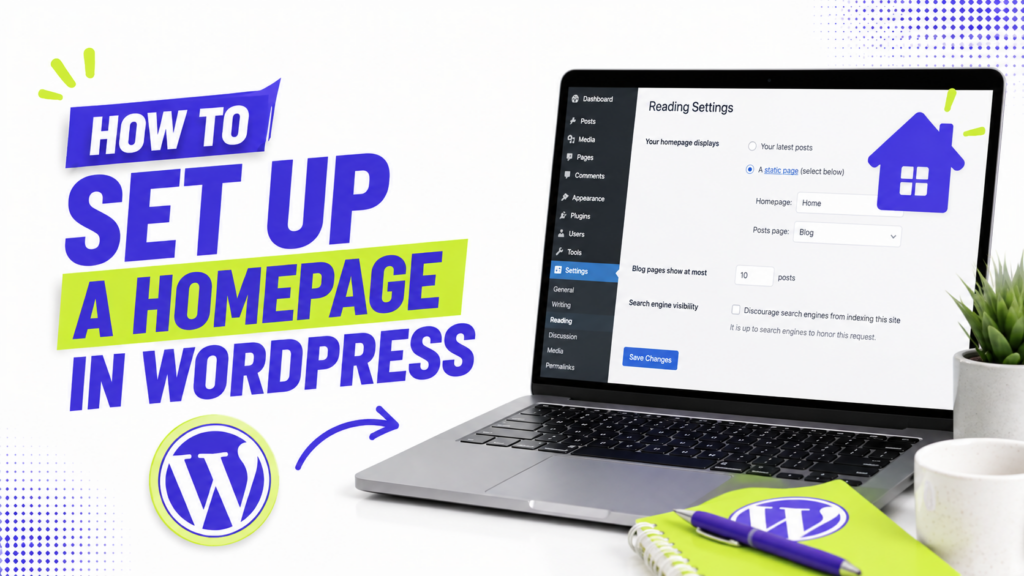
By default, WordPress shows your latest blog posts on your homepage. For a pure blog, that’s fine. But if you want visitors to land on a designed welcome page, with a headline, an intro, and links to your best stuff, you’ll want to set a proper homepage instead.
The good news is that you can set up a homepage in WordPress with a quick settings change, not a coding project. In this guide, I’ll show you how to choose between a blog feed and a static homepage, create the page you want, and set it as your front page. I’ll cover both classic themes and newer block themes, since the steps differ slightly. Let’s get into it.
If you’re still setting up your theme, our guide on customizing a free theme without code pairs nicely with this one.
Set Up a Homepage in WordPress: Your Two Options
WordPress gives you two choices for what your homepage shows:
- Your latest posts. A reverse-chronological feed of your blog posts. Great for news sites and blogs where fresh content is the point.
- A static page. A fixed page you design once, like a landing page or a welcome page. Great for businesses, portfolios, and anyone who wants a controlled first impression.
Not sure what “static page” means in practice? Think of the front pages of sites you already know. A business homepage with a big welcome banner, an “about us” blurb, and buttons linking to services is a static page. So is a photographer’s portfolio landing page, or a simple “Welcome, here’s what I write about” intro page for a blog. It’s a page you build and arrange deliberately, and it stays the same until you edit it, unlike a blog feed that changes every time you publish a post.
Most people setting up a homepage want the static-page option, so that’s what we’ll focus on. The whole thing comes down to one setting, everything else is just designing the page itself.
Step 1: Create Your Homepage (and a Blog Page)
Before you can set a static homepage, you need a published page to use. Drafts won’t appear in the settings, so publish it first.
- Go to Pages → Add New.
- Give it a title like “Home.”
- Add whatever content you want: a headline, an intro, images, buttons.
- Click Publish.
Here’s a smart move most beginners miss: if you still want a blog, create a second empty page called “Blog” and publish it too. You’ll point your posts there in the next step, so your blog lives at yoursite.com/blog while your designed homepage sits at the front.
Step 2: Set Your Static Homepage
Now for the one setting that does the job. Go to Settings → Reading in your dashboard.
- Under Your homepage displays, select A static page.
- In the Homepage dropdown, choose the “Home” page you just created.
- In the Posts page dropdown, choose your “Blog” page (if you made one).
- Click Save Changes.
Visit your site and your new homepage is live, with your blog neatly tucked onto its own page.
That’s genuinely the whole core of it. If you prefer a live preview while you do this, the Customizer offers the exact same control at Appearance → Customize → Homepage Settings. It’s the same setting in a different window, so use whichever you like.
Step 3 (Block Themes): Use the Site Editor
If you’re running a modern block theme like Twenty Twenty-Five, you get an extra, more visual way to build your homepage: the Site Editor.
Go to Appearance → Editor, then click your homepage preview to start editing it directly. You can add, remove, and rearrange blocks with a live preview, which makes designing a front page far more intuitive than the old way.
One thing that trips people up on block themes: many come with a built-in homepage design (a “Front Page” template). If yours does and you don’t set a static page, WordPress uses that template automatically. If your block theme’s homepage isn’t showing what you expect, check Settings → Reading to confirm your homepage setting matches what you want.
Step 4: Design a Homepage That Works
Setting the page is easy. Making it good is where the value is. A strong homepage usually has a few key ingredients:
- A clear headline. Tell visitors what your site is about in one glance. No clever riddles.
- A short intro. A sentence or two on who you are and what they’ll find.
- A call to action. A button pointing to your best content, your services, or your contact page.
- Links to key sections. Help people go deeper without hunting.
- Clean visuals. One or two good images beat a wall of stock photos, and a consistent color palette ties it together.
Many free themes include a “front page” template with ready-made sections (a hero banner, features, testimonials) you can toggle on and off. Our roundup of the best free WordPress themes flags the ones with strong homepage layouts.
Want to skip the design work entirely? At ThemePocket we share completely free templates, no cost, no catch, including full landing pages and ready-made homepage layouts you can drop straight in. You’ll also find individual sections (hero banners, feature grids, call-to-action blocks), like our free SaaS pricing table template, you can mix and match to assemble exactly the homepage you want, without starting from a blank page.
Step 5: Add Your Homepage to the Menu
Once your homepage is set, make sure people can navigate back to it. Add a “Home” link to your navigation so visitors always have a way back to the front. While you’re at it, make sure key pages like your contact page are in there too.
Our guide on adding a menu in WordPress walks through this in a couple of minutes.
A Few Common Questions
1. Why can’t I select my page as the homepage? Almost always because the page is still a draft. Only published pages appear in the Settings → Reading dropdown, so publish your homepage first, then it will show up.
2. Can I have both a homepage and a blog? Yes, and it’s the standard setup. Create two pages (“Home” and “Blog”), then in Settings → Reading assign one as your homepage and the other as your posts page.
3. My block theme’s homepage looks wrong. What do I do? Check Settings → Reading. On some block themes, the built-in homepage template only shows when the setting is on “Your latest posts,” despite the name. If you set a static page, make sure it’s the page you actually designed.
4. How do I change my homepage back to blog posts? Go to Settings → Reading, choose Your latest posts under “Your homepage displays,” and save. Your homepage returns to a feed of recent posts.
Your Front Door Is Ready
To set up a homepage in WordPress really is a one-setting job at heart: create a page, publish it, and select it under Settings → Reading. Classic theme or block theme, that core idea holds.
Building a focused marketing page instead? See our guide on building a landing page in WordPress. The real work, and the real payoff, is in designing a homepage that welcomes visitors and points them toward your best content. Get that right, and your homepage becomes the front door that turns first-time visitors into regulars. To see how well it’s working, add Google Analytics and track how visitors move through your site.